Tracking sequence numbers and flags in Wireshark
Tracking sequence numbers and flags in Wireshark
One of the things I learned a while back was a really good tip when using Wireshark. I find people sometimes get tied up tracking the sequence numbers and the wireless frame flags in Wireshark.
Having to open the frames and look for flags and following sequence numbers can be quite complex and time consuming.
Here’s a Wireshark Tip
Here is a little tip I learned, which seems so obvious once someone tells you…
When viewing the frames in Wireshark, the “Info” column can be very informative. It shows the type of frame, and the sequence number (SN). It also shows the SSID name, the Beacon Interval (BI) and also the Flags from the wireless frame header.
One exception to this standard “info” field display is, if you have data that is not encrypted, Wireshark may start to show you the TCP/UDP or HTTP information in the “info” field, then you do have to go and dig, and look inside the frame to see the flag details. Basically, on an unencrypted Wireless network, or if you have entered the PSK intentionally so as you can decrypt packets, this may display actual packet data, not “useful wifi info”.
If we take a look in Diagram 1 below, you will see the Flags are listed underneath the “Flags” section within the “Frame Control Field”. You can also find a summary right next to the “IEEE 802.11 Beacon Frame” section (in fact whatever the type of frame you are viewing, the flags are summarized next to this section). A feature that often goes unnoticed, they are also summarized in the top right section of the Wireshark Frames display, within the “info” field.
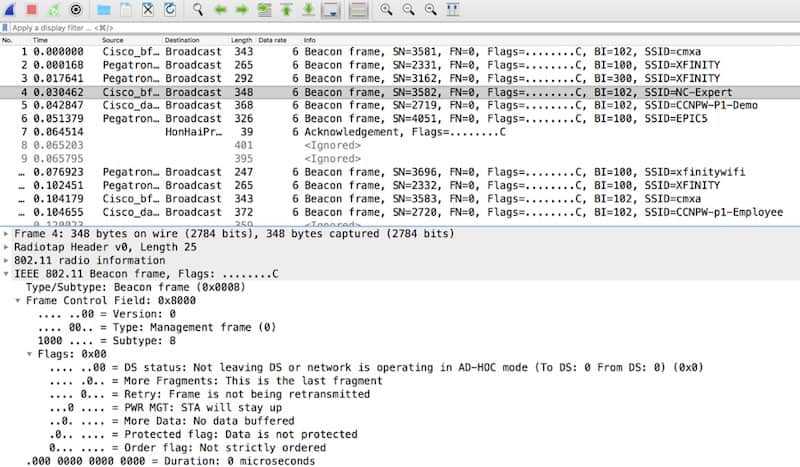
DIAGRAM 1
When the flags are shown next to the “IEEE 802.11 Frame” field (where represents the type of frame shown) or when show within the “info” column, the frame flags are listed using the following format: xxxxxxxxC, where the x’s represent characters that are displayed. The format is displayed as a mix of eight letters followed by an uppercase “C”. If a given flag is not set, it is represented as a period. As you can see in Diagram 1, none of the flags are set, and so the flag field will be represented as eight periods followed by an uppercase “C”.
The eight flags are shown as the following letters in this order: opmPRMFTC
o is the Order bit
p is the protected bit
m is the More Data bit
P is Power Management
R is Retry
M is More Fragments
F is FromDS
T is ToDS
That’s the eight flags!
Well, what’s the “C” then, I hear you ask.
A lot of people misunderstand this, and mis-name this uppercase “C”.
The “C” is there as long as the frame did not fail its CRC check. Now please note this is not the same as the frame passing its CRC check. If for whatever reason the CRC is not present (maybe because you only captured a small segment of the frame e.g. 128B, or you didn’t capture FCS’), Wireshark represents this with an uppercase “C”. This happens whether the frame is corrupt or not and can be quite confusing. So, watch out for that one!
2025 Update...
We talk about this, more, in our AMA series webinars:
https://www.youtube.com/watch?v=TM70jXEsFsk
That’s it for this month. See you next time.
If you are looking to make your mark in the IT Industry, then NC-Expert offers excellent training courses aimed at relevant IT industry certifications – contact us today to get started.
NC-Expert Blog