Troubleshooting Wireless Networks with Ekahau
Troubleshooting Wireless Networks with Ekahau: A Professional Engineer’s Guide
Wireless networks have become the backbone of modern business infrastructure. From office environments to large-scale enterprises, ensuring a seamless wireless experience is essential for productivity. However, despite advancements in Wi-Fi technology, network performance issues often arise, ranging from signal interference and dead zones to capacity overloads and channel mismanagement.
To tackle these issues efficiently, professional engineers rely on powerful tools. One such tool, Ekahau AI Pro, has become a gold standard in the wireless industry for troubleshooting and optimizing Wi-Fi networks.
This blog delves into troubleshooting wireless networks using Ekahau tools, providing practical examples and technical insights to guide professional engineers in improving network performance.
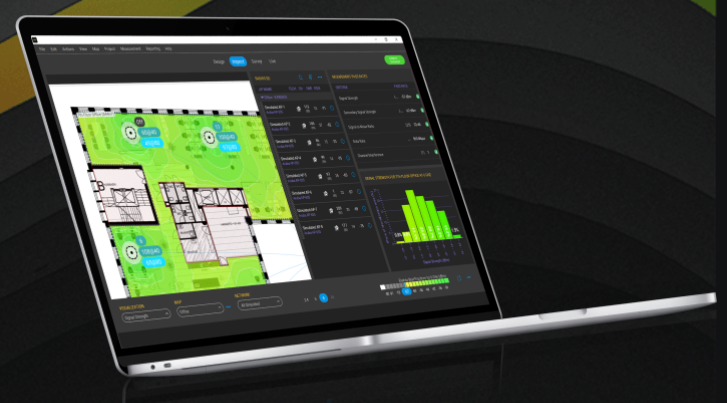
Ekahau AI Pro
Understanding Ekahau Tools
Ekahau offers a suite of software and hardware tools designed for wireless network design, analysis, and troubleshooting. Two primary products - Ekahau AI Pro and Ekahau Sidekick 2 - are the workhorses of wireless network optimization:
• Ekahau AI Pro: This software provides a robust platform for Wi-Fi site surveys, spectrum analysis, and network troubleshooting. It allows users to visualize coverage, signal strength, channel interference, and other network metrics in real-time.
• Ekahau Sidekick 2: This hardware tool is an advanced, calibrated RF measurement device used in conjunction with Ekahau tools for conducting high-precision site surveys and troubleshooting.
These tools provide engineers with detailed data, allowing for better decision-making when addressing wireless network problems.
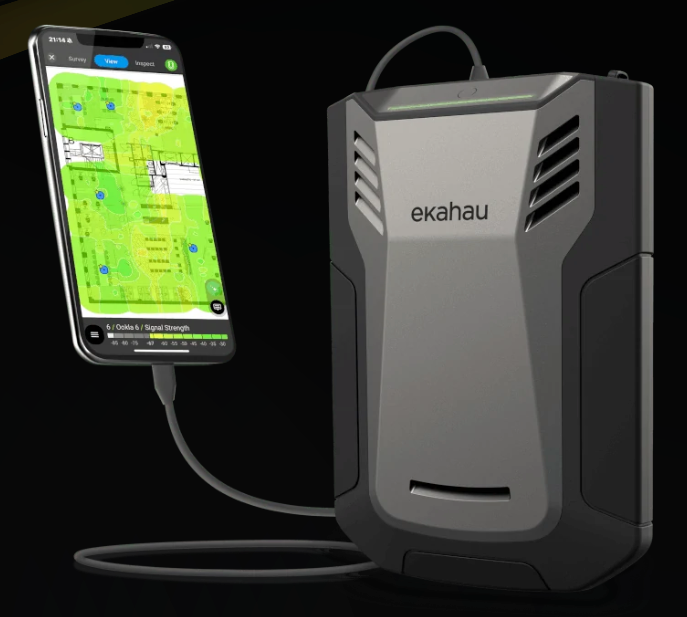
Ekahau Sidekick 2
Identifying Common Wireless Network Issues
Before diving into troubleshooting with Ekahau, it's essential to understand the typical wireless network issues that engineers face:
• Coverage Gaps: Often caused by physical obstructions (walls, furniture), poor placement of access points (APs), or insufficient AP density.
• Interference: Both co-channel interference (CCI) and adjacent-channel interference (ACI) can degrade Wi-Fi performance. Interference can come from other wireless devices, such as Bluetooth, microwave ovens, or even neighboring Wi-Fi networks.
• Channel Overlap: Misconfigured AP channels can overlap, causing congestion and degraded throughput. Typically, this occurs in 2.4GHZ when not restricting channel width to 20MHz and channel usage to 1,6,11. However, degradation can still occur in 5 and 6 GHz networks, due to misalignment of channel bonding and primary channel selection. The result can cause an Overlapping BSS condition to occur, causing sub-optimum usage of the Wi-Fi channels.
• Capacity Issues: Overcrowded APs, especially in high-density environments (conference rooms, offices), can lead to slow speeds and dropped connections.
• Roaming Issues: Poor roaming behavior, where clients don’t switch to the optimal AP, can lead to dropped connections or poor performance.
Step-by-Step Troubleshooting with Ekahau Tools
1. Initial Survey and Network Mapping
Before troubleshooting any issues, a site survey is the best way to understand the current state of the wireless network. Ekahau AI Pro, along with a Sidekick 2, provides a comprehensive survey feature that allows engineers to map out network metrics easily and quickly within a given area.
Practical Example: Suppose an engineer receives reports of poor connectivity in a particular area of the office. The first step would be to perform a survey. This will help visualize the current signal strength across different locations, highlighting potential dead zones or areas with weak signals. With this data, the engineer can reposition access points or add new ones to improve coverage.
• Signal Strength: The engineer can look for areas where signal strength is too low for good connectivity and address these gaps.
• Data Rates: The heatmap can also visualize the maximum supported data rates in each area, helping the engineer ensure that the network meets performance requirements.
2. Spectrum Analysis for Interference
Wi-Fi networks operate in the 2.4, 5 and 6 GHz bands, but these frequencies could be used by many other devices. Identifying and mitigating interference is critical to ensure reliable performance.
Ekahau AI Pro integrates spectrum analysis capabilities, enabling engineers to view real-time RF interference levels. The tool can detect interference from non-Wi-Fi devices such as microwave ovens, cordless phones, Bluetooth devices, video cameras, radar transmissions and other interferers
Practical Example: In a troubleshooting scenario where users report slow speeds and disconnections, the engineer can use Ekahau AI Pro’s spectrum analysis tool to scan for potential sources of interference. If a large spike in the 2.4 GHz band corresponds to a nearby microwave or other interfering device, the engineer may recommend moving APs away from this interference, changing channels or switching clients to the less-congested 5/6 GHz bands.
• Co-Channel Interference (CCI): This occurs when multiple APs, in close proximity and on the same channel interfere with each other. The tool can detect this by analyzing overlapping channels.
• Adjacent-Channel Interference (ACI): This happens when APs are configured on channels that are too close together (e.g., 1, 3, 5), causing overlap that degrade performance. Ekahau will show the channels in use and their interference levels.
• Overlapping BSS (OBSS): This condition occurs when neighboring APs overlap channels with different width settings (e.g. 20/40/80 overlapping), and they use different primary channel selection.
3. Channel Planning and Optimization
Channel planning is crucial for optimal Wi-Fi performance, especially in environments where multiple APs are deployed in close proximity, such as office spaces or warehouses. Ekahau AI Pro allows for detailed channel planning and optimization to minimize overlap and interference.
Practical Example: In a multi-story office building, an engineer might notice performance degradation on certain floors. Using Ekahau AI Pro, they can visualize the current channel assignment and find that several APs are using overlapping channels, or maybe an OBSS, leading to sub-optimum performance. The engineer can then use adjust the channel assignments, accordingly.
4. Roaming Troubleshooting
Roaming issues, where clients fail to switch to the best AP as they move through the environment, are common in large Wi-Fi networks. This can lead to slow speeds or dropped connections as devices stay connected to distant or low-performance APs.
Practical Example: In a large office, an employee walks through several areas but notices that their device degrades. An IT engineer may notice the cause of this degradation if that the client doesn’t switch to nearby APs with a better signal strength. Using Ekahau AI Pro, the engineer can analyze wireless data and leverage it to understand client roaming behaviors. Adjusting AP location, operation and configurations (e.g., enabling 802.11k, 802.11r, or 802.11v) or tweaking the power levels of neighboring APs can help resolve roaming issues.
5. Post-Troubleshooting Analysis and Reporting
Once troubleshooting is complete, Ekahau AI Pro allows engineers to generate detailed reports that can be shared with stakeholders. These reports often include heatmaps, spectrum analysis graphs, channel plans, and recommendations for network optimization.
Practical Example: After resolving an interference issue or optimizing AP placement, the engineer can create a comprehensive report showcasing the before-and-after performance improvements. This serves as valuable documentation for both the engineering team and management.

Wrapping It All Up
Wi-Fi troubleshooting can be complex, especially in environments with numerous variables affecting network performance. However, with tools from Ekahau, professional engineers can conduct in-depth analysis, identify underlying issues, and implement effective solutions.
By leveraging the advanced capabilities of Ekahau AI Pro and Ekahau Sidekick 2, engineers can ensure that wireless networks are optimized for both performance and capacity, resulting in a smoother and more reliable experience for users. Whether addressing coverage gaps, minimizing interference, or enhancing client roaming behavior, Ekahau provides the data-driven insights necessary for a successful troubleshooting process.
In the fast-paced world of enterprise networking, Ekahau tools empower engineers to stay ahead of the curve and resolve wireless network issues efficiently, making them indispensable in the toolkit of any network professional!
===
Ekahau also provides award winning training that teaches you how to use these tools, and move from Wi-Fi novice to expert in easy-to-digest steps!
To learn more about Ekahau, or get a Demo, click here: https://wifi.ekahau.com/demo-phil/
To learn about NC-Expert Consulting Services, to help you design and manage Wi-Fi networks, click here
See you next time!
===
#General #Ekahau #EkahauAIPro #EkahauSidekick2 #NetworkDesign #TroubleshootingNetworks #WiFi
===
About NC-Expert
NC-Expert is a privately-held California corporation and is well established within the Wireless, Security, and Collaboration industry certification training, courseware development, and consulting markets.
NC-Expert has won numerous private contracts with Fortune level companies around the world. These customers have depended on NC-Expert to train, advise, and mentor their staff.
So remember, if you are looking for the best IT training just call us at (855) 941-2121 or contact us
NC-Expert Blog